

How to View Transaction History in Zafago Portal
View Transaction History in Zafago Portal
Zafago Portal Transaction History helps users review and manage financial transactions directly from the Finance module. You can check transaction amounts, wallets, status, payment information, supporting documents, and transaction codes in one place. The page also includes filters, customizable columns, and data export tools for easier monitoring and reconciliation.
This guide explains how to access Transaction History, understand each transaction, filter the records you need, customize the table, and export transaction data.
Zafago Portal Transaction History shows all transaction records in one place
Zafago Portal Transaction History provides a detailed record of financial activities processed through the Portal. To access it, open the left navigation menu and select Finance → Transaction History. The system will display available transactions together with their corresponding financial and processing information.
Step 1: Open Transaction History
After signing in to Zafago Portal:
Finance → Transaction History
The Transaction History page displays transactions in a table, making it easier to review multiple records without opening each transaction individually.
Depending on the transaction, users can review details including:
- Transaction time
- Customer
- Wallet
- Transaction type
- Pre-tax amount
- Exchange rate
- Tax or transaction fee
- Post-tax amount
- Top-up user
- Supporting documents
- Status
- Transaction code
- Notes
- UNC
Transaction types can include Top-up and Withdrawal, helping users distinguish money added to the system from withdrawal activities.
For daily checks, users may only need the amount, type, and status. During reconciliation, finance teams can review more detailed fields such as exchange rates, fees, supporting documents, and transaction codes.
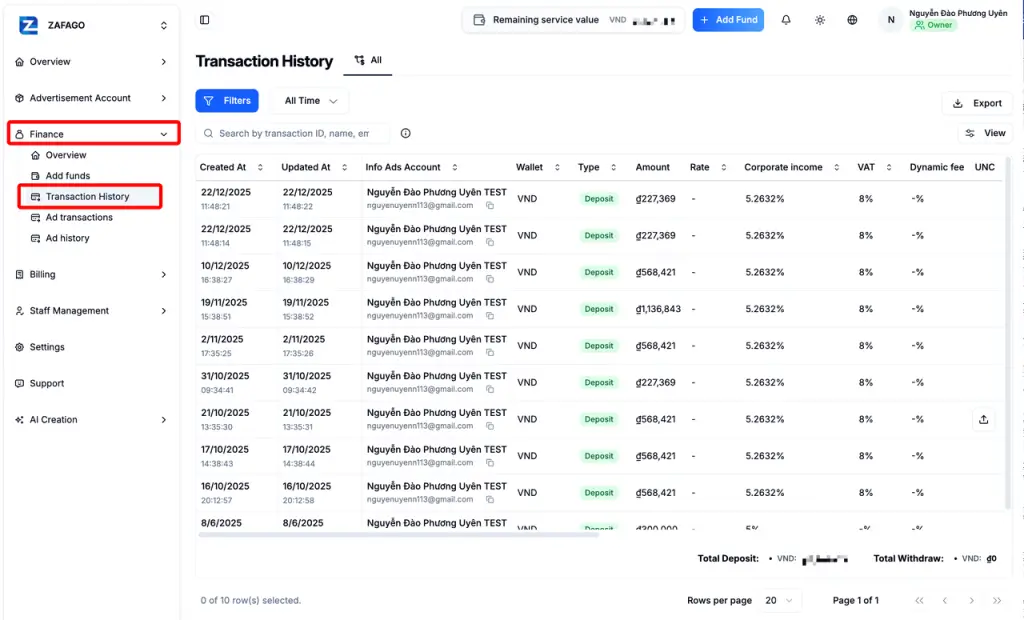
Transaction statuses show the progress of each transaction
Each transaction in Zafago Portal has a status that indicates its current processing stage. Checking this field first helps users quickly determine whether a transaction has been successfully completed, is still being processed, or requires further review.
The main statuses displayed in Transaction History include:
| Status | Meaning |
|---|---|
| Completed | The transaction has been completed successfully. |
| Processing | The transaction is currently being processed. |
| Pending | The transaction requires additional processing or confirmation. |
| Failed | The transaction was unsuccessful. |
| Canceled | The transaction has been canceled. |
When reviewing a transaction, avoid checking the amount alone. The Status field provides important context about whether that amount has already completed the transaction flow.
For example, two transactions may display similar amounts but have different statuses. One may already be Completed while another remains Processing. Checking the status prevents users from treating both transactions as finalized.
If further verification is required, users can review the transaction code, supporting documents, notes, and other available information alongside the status.
Filters help users find the right transaction faster
The Filter feature helps users narrow Transaction History based on specific conditions instead of manually searching through the entire table. This is particularly useful when an account has accumulated many transactions over time.
Step 2: Apply filters to transaction records
Click Filter on the Transaction History page and select the conditions relevant to your search.
Depending on the available records and settings, users can filter transactions using criteria such as:
- Status: Pending, Processing, Failed, Canceled, Completed
- Currency
- Transaction type: Top-up or Withdrawal
- Payment method
- Other available transaction conditions
For example, if you only need to review successfully processed deposits, select the relevant Top-up transaction type and Completed status.
The same approach can be used when troubleshooting. If a payment appears not to have been completed as expected, filtering for Pending, Processing, or Failed transactions can reduce the number of records that need to be checked.
This becomes increasingly useful for advertisers or agencies processing transactions across multiple advertising activities.
Rather than exporting everything to Excel first, users can narrow the information directly inside Zafago Portal.
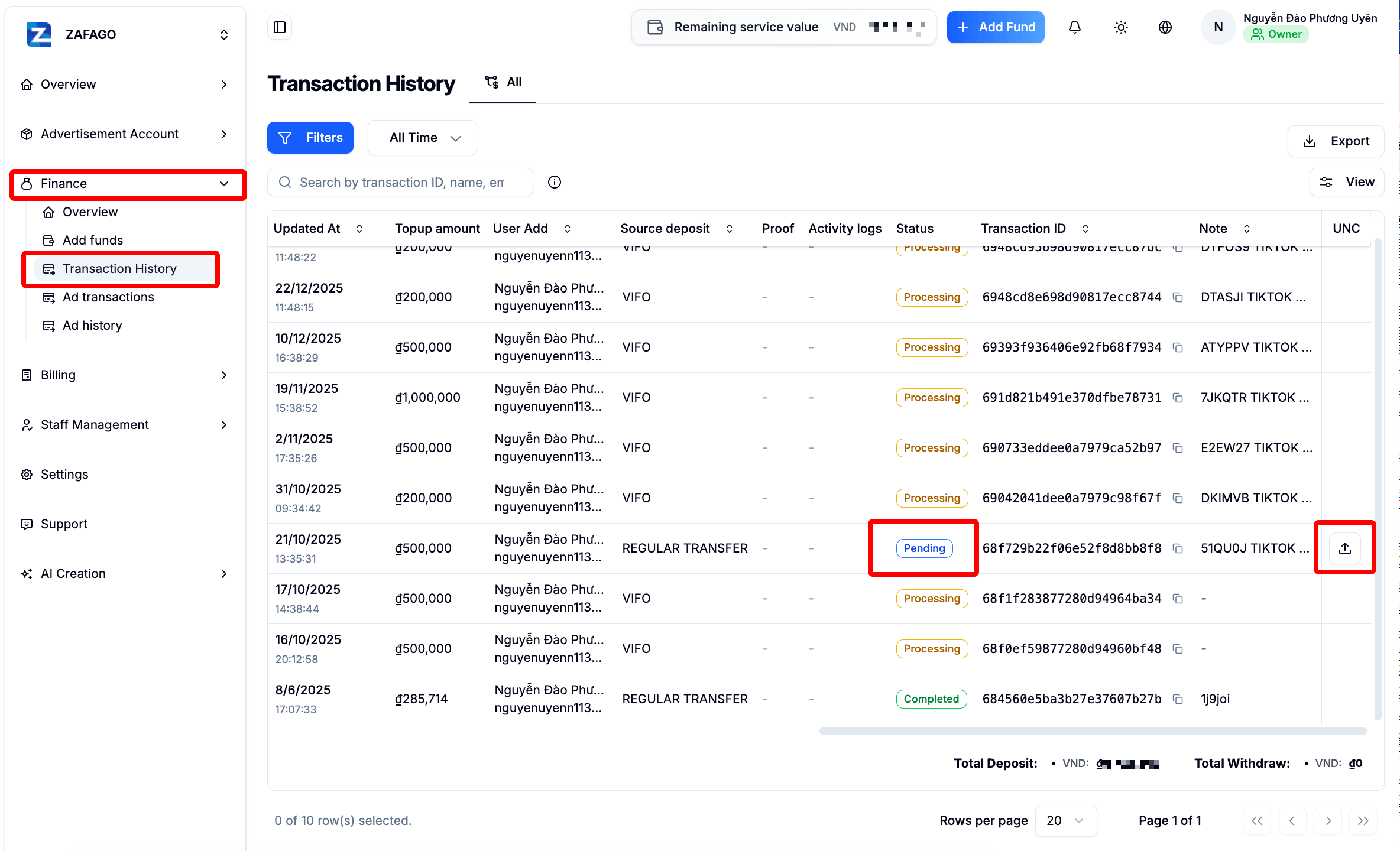
Custom View makes Transaction History easier to monitor
Custom View allows users to choose which columns appear in the Transaction History table. By selecting Toggle Columns, users can show or hide individual fields based on the information they need for a specific task.
Step 3: Customize the displayed columns
Select Toggle Columns from the Transaction History interface.
From here, choose which fields should remain visible and which can be temporarily hidden.
This is useful because different users may need different transaction information.
An advertising operator may focus on transaction time, amount, type, and status. A finance team may need additional fields such as exchange rate, tax, transaction fees, supporting documents, transaction code, and UNC.
Instead of displaying every available field at the same time, Custom View makes the table easier to scan while keeping detailed information available when needed.
The feature does not change transaction data. It only changes how the information is displayed to the user.
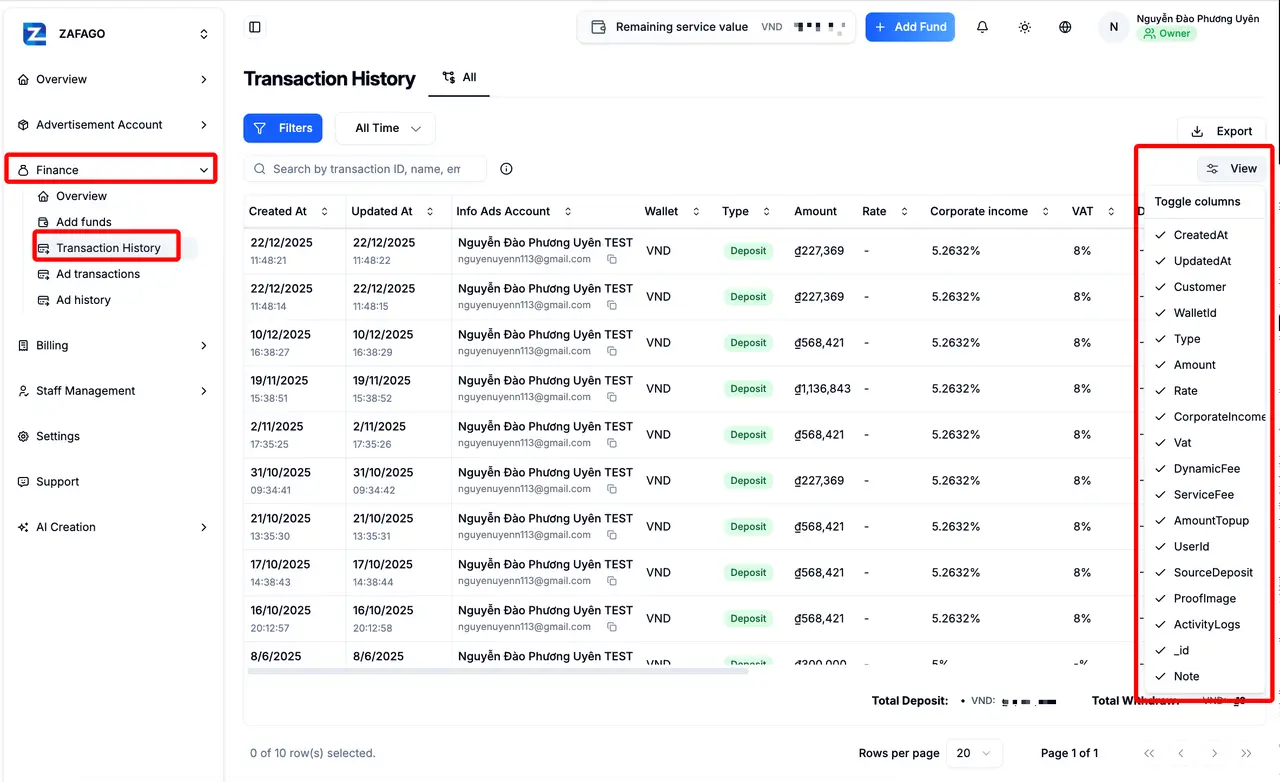
Export Data makes transaction reconciliation easier
Zafago Portal allows users to export Transaction History when transaction records need to be checked, reconciled, or stored outside the Portal. The system can download the selected transaction data as an Excel file for further verification and record keeping.
Step 4: Export Transaction History
When transaction reconciliation is required:
- Open Finance → Transaction History.
- Select the required date or transaction period.
- Apply the necessary filters.
- Click Export Data.
- Open the downloaded Excel file for verification.
Applying the required period and filters before exporting can make the resulting dataset easier to work with.
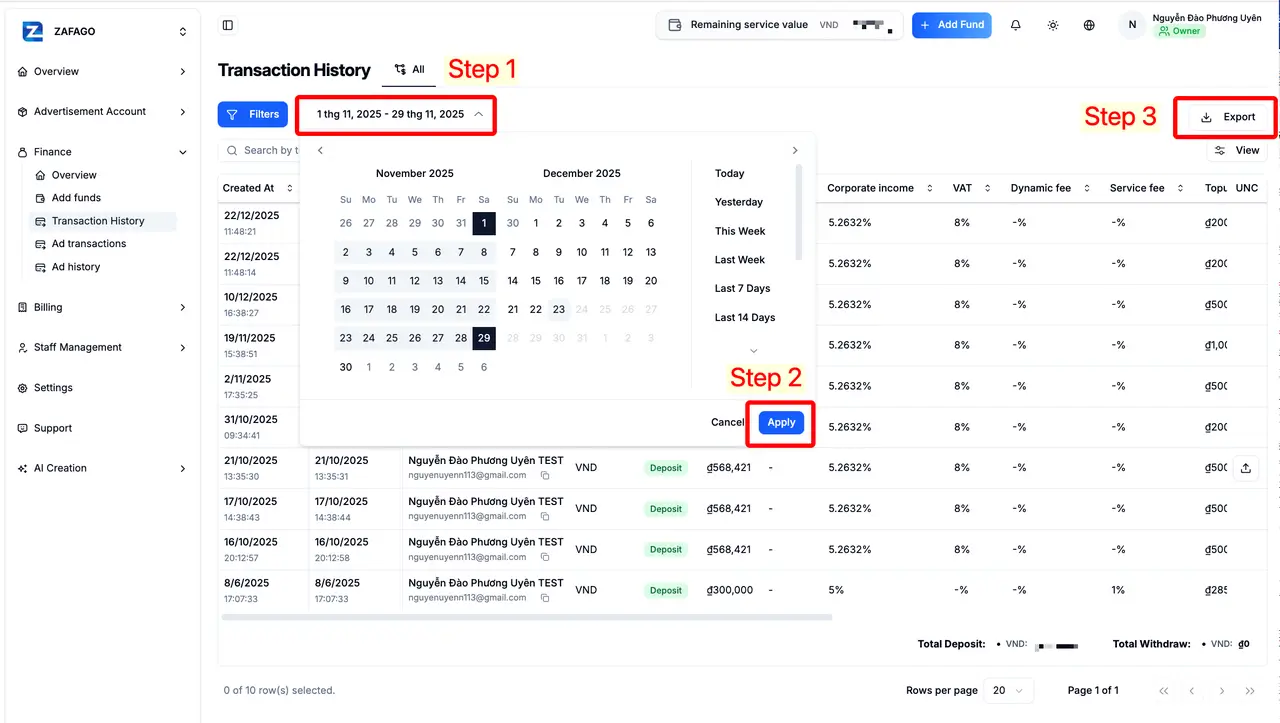
For example, instead of downloading every historical transaction, a finance team can select the relevant reporting period and export only the records required for that reconciliation cycle.
The Excel file can then be used for internal verification or record keeping according to the company’s own financial process.
This workflow is particularly useful when Portal transaction information needs to be compared with internal finance records.
For businesses using multiple advertising accounts, users can also explore Zafago Portal Finance, Rent TikTok Agency Ad Account, and TikTok Advertising Account Management to connect transaction monitoring with the wider advertising account workflow.
Zafago Portal Transaction History supports daily finance monitoring
Zafago Portal Transaction History combines transaction details, processing statuses, filters, customizable columns, and export tools within one Finance page. Users can therefore move from a quick daily transaction check to more detailed reconciliation without rebuilding transaction records manually.
A practical workflow is straightforward:
Open Transaction History → check status → apply filters → customize columns → export data when required.
For a quick check, users can focus on transaction type, amount, and status. For deeper verification, additional fields such as exchange rates, fees, supporting documents, transaction codes, notes, and UNC provide more context.
This makes Transaction History useful for both advertising operators monitoring daily activity and finance teams responsible for transaction reconciliation.
Conclusion
Zafago Portal Transaction History provides a practical way to check financial activity without searching through separate payment records. Users can review transaction details and statuses, filter specific records, customize the table, and export data when reconciliation is required.
For the most efficient workflow, start by checking the transaction status, use Filter to narrow the records, adjust Toggle Columns when detailed fields are not required, and use Export Data when the information needs to be reviewed outside Zafago Portal.
If a transaction requires further verification, review its transaction code, supporting documents, status, and other available details before using the record for reconciliation.
FAQ
Transaction History is available under the Finance menu
Go to Finance → Transaction History from the left navigation menu after signing in to Zafago Portal.
Transaction History includes Top-up and Withdrawal records
Users can review Top-up and Withdrawal transactions together with their available financial details and processing statuses.
Transaction History can be filtered by transaction conditions
Use Filter to narrow records by available criteria such as status, currency, transaction type, and payment method.
Transaction History columns can be customized
Use Toggle Columns to show or hide specific transaction fields according to your monitoring needs.
Transaction History can be exported to Excel
Select the required transaction period, apply relevant filters, and click Export Data. Zafago Portal will download the transaction data for verification and record keeping.
ZAFAGO GLOBAL – Digital Growth Partner
Zafago Global is a Performance Digital Marketing Agency dedicated to partnering with businesses to optimize strategies and drive sustainable revenue growth.
 Office: 21st Floor CMA Building 64 Connaught Road Central, Hong Kong 999077
 Hotline :(+84) 888-025-050
 Email: biz@zafagodigital.com