

Zafago Portal Permissions: Create and Manage Staff Access
Zafago Portal Permissions helps businesses organize how staff members access different areas of the Portal. Instead of giving every team member the same level of access, administrators can create permission groups based on each team’s responsibilities and adjust them whenever internal roles change.
The feature is located under Staff Management > Permissions. From this page, users can create a new permission group, modify an existing group, or remove a permission group that is no longer needed.
This guide explains each action step by step.
Zafago Portal Permissions creates structured access for staff
Zafago Portal Permissions provides a simple way to organize staff access through permission groups. Administrators can define a group name, select the permissions required for that group, and save the configuration. This creates a more structured approach to Portal access when multiple people are involved in advertising operations.
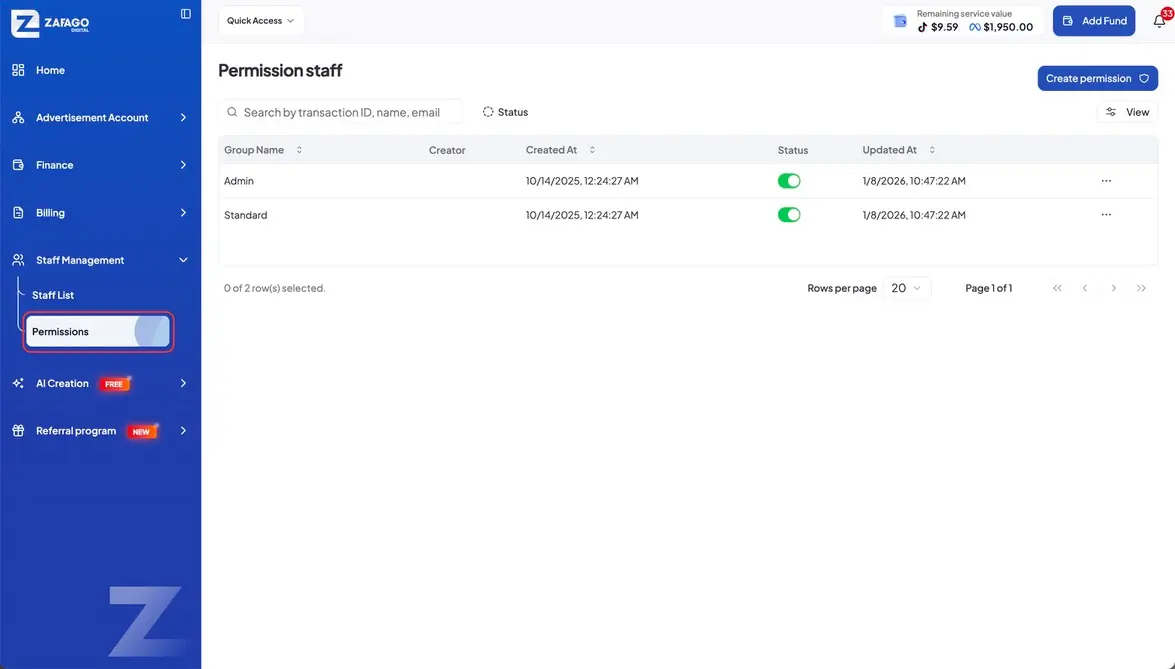
Step 1: Open Permissions
Log in to Zafago Portal and locate Staff Management in the left navigation menu.
Click Permissions to open the permission management page.
Step 2: Select Create Permission
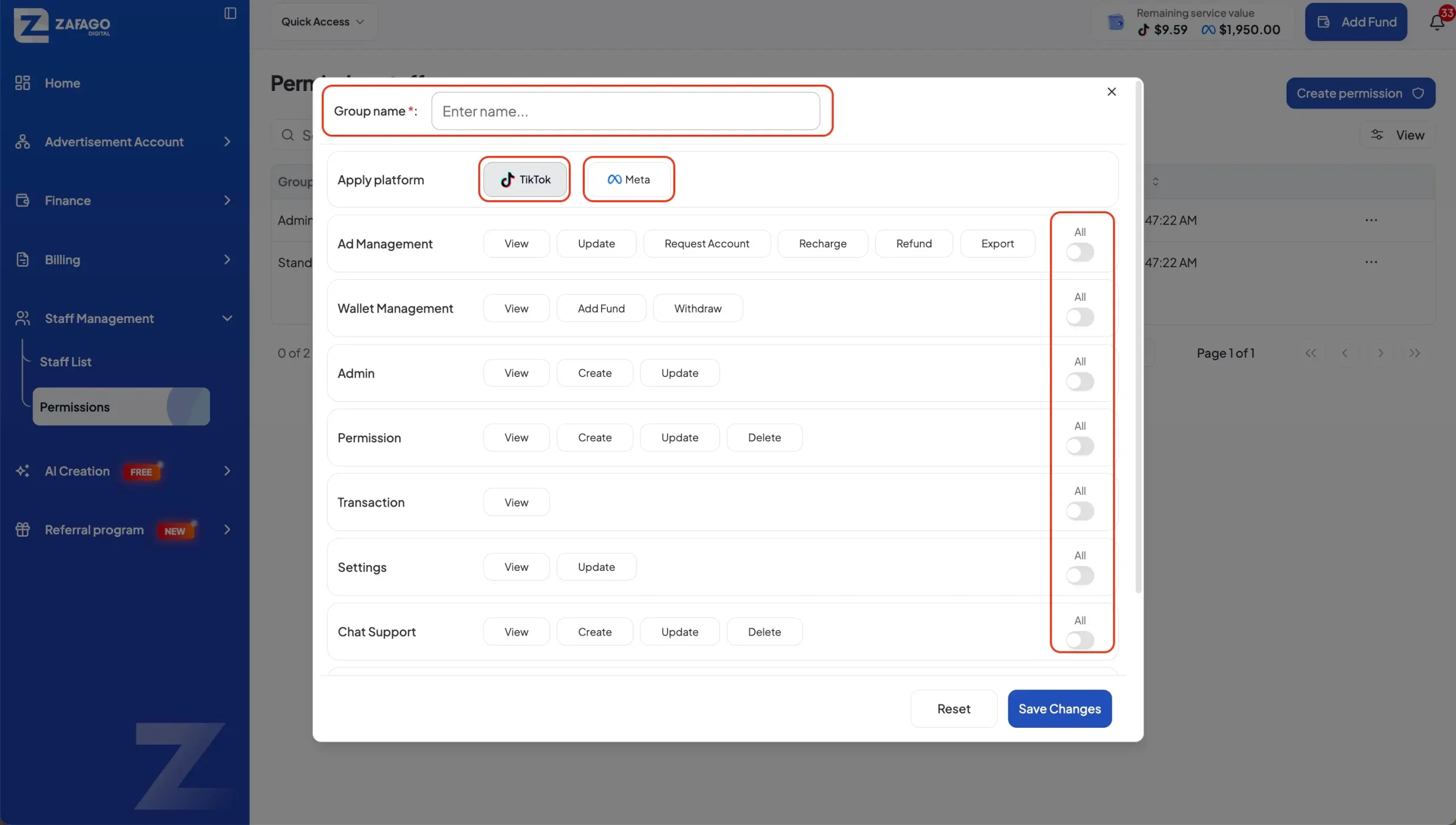
On the Permissions page, click Create Permission in the upper-right area of the screen.
The Portal will open the configuration area where you can define a new permission group.
Step 3: Configure and save the permission group
Enter a name that clearly identifies the permission group.
Next, select the permissions you want to include based on the responsibilities of the staff members who will use the group.
Review the selected permissions and click Save Changes to complete the setup.
Zafago Portal Permissions allows existing access to be modified
Existing permission groups can be updated when staff responsibilities or internal workflows change. Administrators do not need to create another group from scratch when only the current permissions need adjustment.
Find the permission group you want to modify and click the “…” icon at the end of its row.
Select Edit.
Review the existing configuration and adjust the permissions as required. Once the changes are correct, click Save Changes.
This provides a practical way to keep staff access aligned with current responsibilities as teams evolve.
Zafago Portal Permissions removes groups that are no longer needed
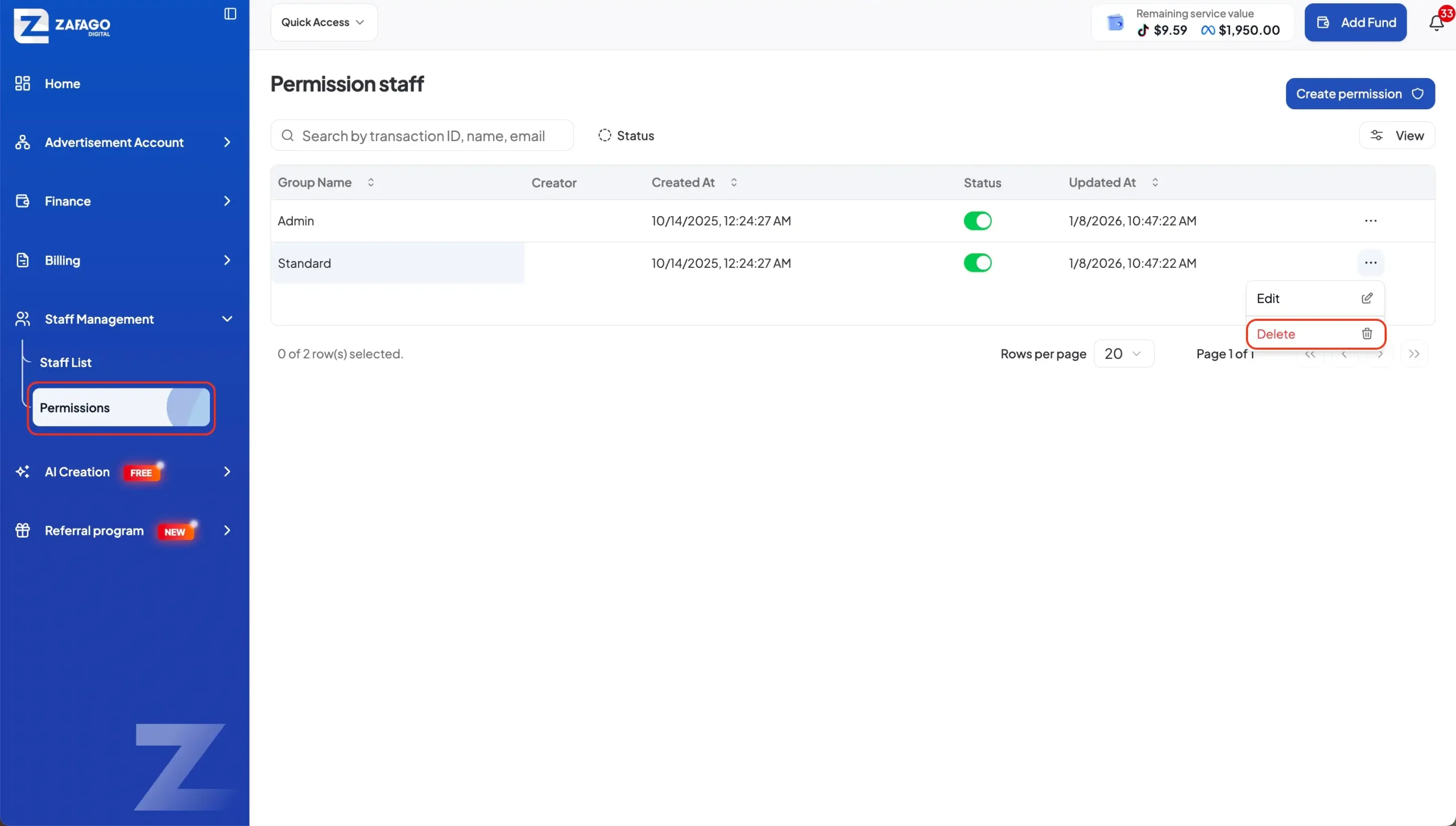
Permission groups that are no longer required can be removed directly from the Permissions page. This helps keep the staff management structure cleaner as roles, teams, or operational requirements change.
Locate the permission group you want to remove.
Click the “…” icon at the end of the corresponding row and select Delete.
Administrators should verify that the correct permission group has been selected before completing a deletion.
Zafago Portal Staff Management keeps team access organized
Permissions works alongside the broader Staff Management area of Zafago Portal. While Staff List is used to manage staff information, Permissions provides the structure for controlling the access assigned to different groups.
For agencies and businesses managing multiple advertising operations, this separation can make internal administration easier to maintain as the team grows.
Customers managing multiple TikTok advertising accounts can also explore TikTok Advertising Account Management to connect account operations with a more structured management workflow.
FAQ
Zafago Portal Permissions is designed around three core actions: creating, modifying, and deleting permission groups. These controls give administrators a straightforward way to maintain staff access without managing every change through disconnected records.
New permission groups are created under Staff Management
Go to Staff Management > Permissions, click Create Permission, enter the group name, select the required permissions, and click Save Changes.
Existing Zafago Portal permissions can be edited
Click the “…” icon beside the relevant permission group, select Edit, modify the required permissions, and click Save Changes.
Permission groups can be deleted from the same page
Locate the relevant permission group, click the “…” menu at the end of its row, and select Delete.
ZAFAGO GLOBAL – Digital Growth Partner
Zafago Global is a Performance Digital Marketing Agency dedicated to partnering with businesses to optimize strategies and drive sustainable revenue growth.