
How to Update Invoice Information in Zafago Portal Easily
Updating your Invoice Information in Zafago Portal ensures that the billing details stored in your account are ready for invoice-related activities. Users can either reuse information already provided in their contract or manually enter the required details.
The process only takes a few steps and can be completed directly from the Portal settings.
Zafago Portal lets users update invoice information from Settings
Zafago Portal provides a dedicated Invoice Information section where users can review and update the details used for invoicing. The information can be populated automatically from an existing contract or entered manually, giving both individual customers and organizations a simple way to maintain their billing details.
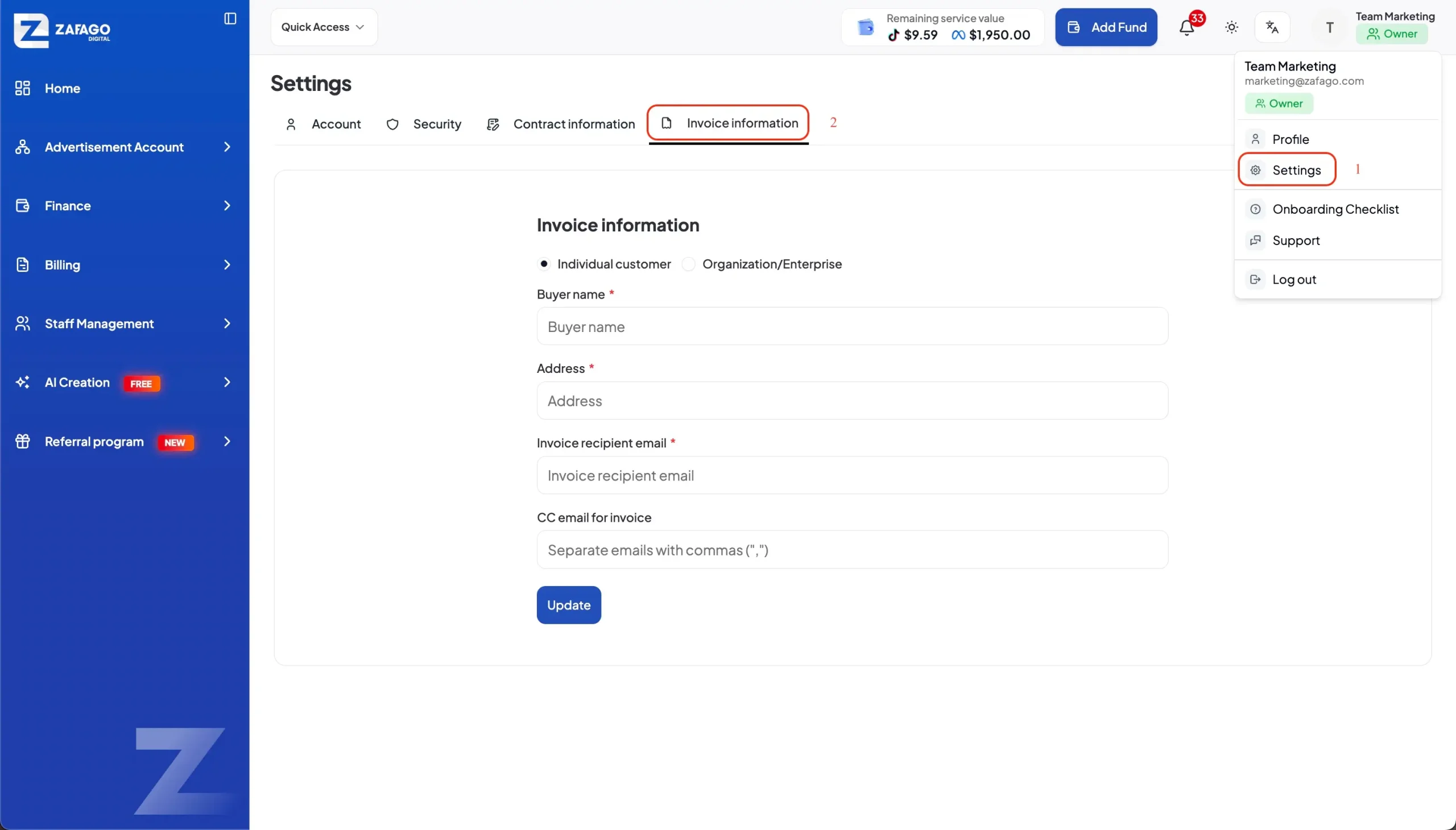
Step 1: Select the Settings menu
Log in to Zafago Portal and open the Settings menu.
This area contains account-related settings and information that users can manage within the Portal.
Step 2: Select the Invoice Information tab
Inside Settings, select the Invoice Information tab.
This section displays the information required for invoice processing. Before entering any data, check the available customer type and the fields marked as required.
Required invoice information can be completed in two ways
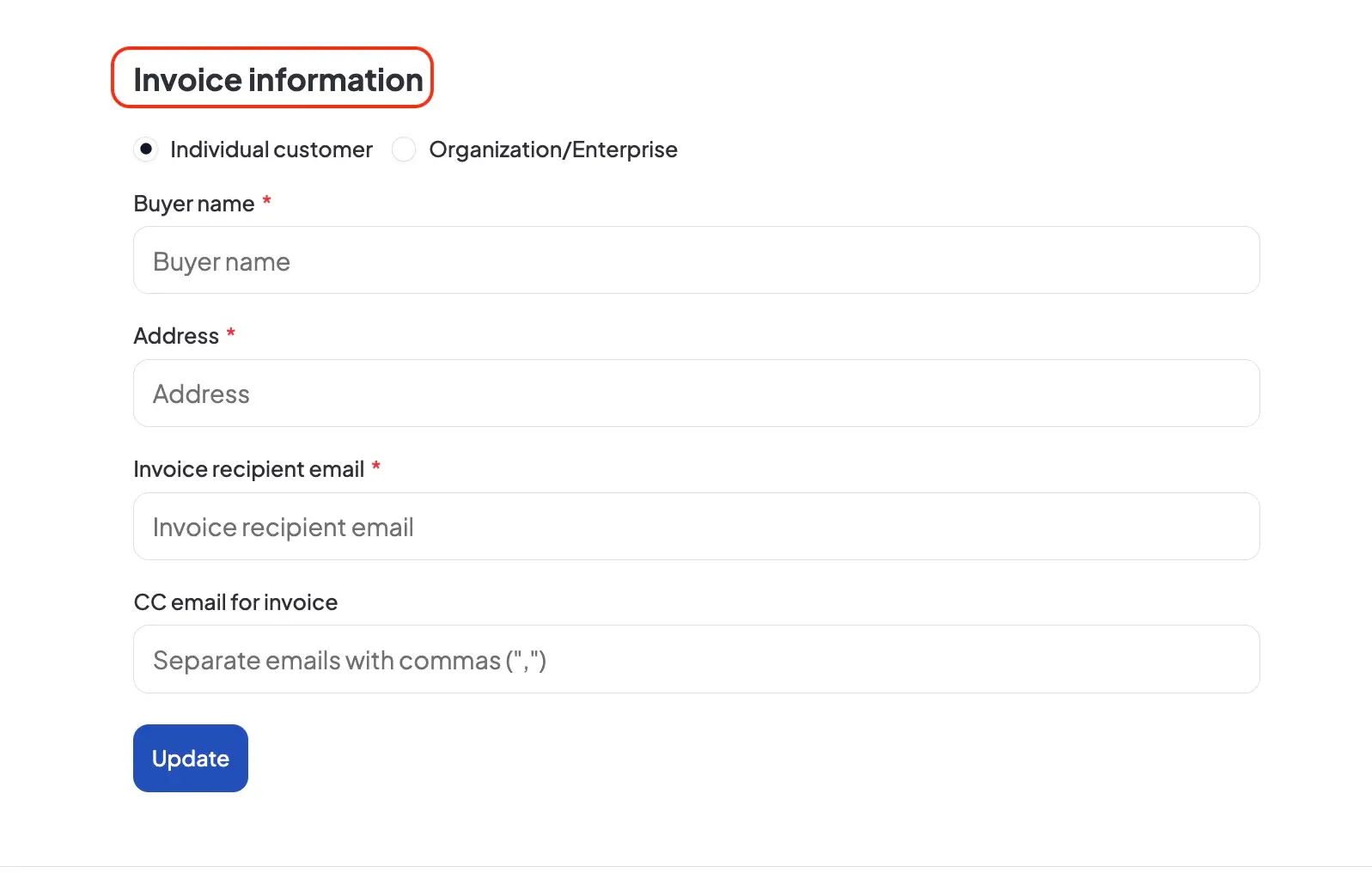
Zafago Portal provides two methods for completing Invoice Information. Users can automatically reuse their existing contract information for a faster setup or manually enter the required details. All fields marked with an asterisk (*) are mandatory and must be completed before the information can be successfully updated.
Option 1: Use existing Contract Information
Select the Use Contract Information checkbox if you want the system to use information already stored in your contract.
Zafago Portal will automatically populate the corresponding invoice fields based on that information.
The available customer type also follows the existing contract:
- For an Individual Customer contract, the Organization/Business option is disabled.
- For an Organization/Business contract, the Individual Customer option is disabled.
This helps keep invoice information consistent with the customer type registered in the contract.
Option 2: Enter Invoice Information manually
Users who do not select Use Contract Information can manually complete the required invoice fields.
Enter the necessary information into each corresponding field and carefully review the details before saving. Fields marked with an asterisk (*) cannot be left blank.
This option gives users more direct control when entering the invoice information available in the Portal.
The Update button saves the completed invoice information
After all required fields have been completed, review the information and select Update. Zafago Portal will then save the submitted Invoice Information to the system. Checking the details before updating helps ensure that the stored information matches the billing details the customer intends to use.
Suggested image 4: Completed Invoice Information form with the Update button highlighted.
Updated invoice details support a more connected Portal workflow
Invoice Information is one part of the wider financial workflow available in Zafago Portal. Alongside billing information, customers can use the Portal to manage supported TikTok and Meta advertising accounts, monitor balances, add funds, review transactions, and access financial activity from one environment.
For businesses managing multiple advertising accounts, this creates a clearer connection between account management and financial records.
Customers looking to expand this workflow can also explore Rent TikTok Agency Ad Account for related advertising account solutions from Zafago Digital.
FAQ
Required fields are identified by an asterisk
Any Invoice Information field marked with an asterisk (*) is mandatory and must be completed before updating the information.
Contract Information can automatically populate invoice details
Selecting Use Contract Information allows Zafago Portal to populate the relevant fields using information from the user’s existing contract.
Customer type follows the registered contract
An Individual Customer contract disables the Organization/Business option. An Organization/Business contract disables the Individual Customer option.
Invoice Information is saved after selecting Update
Once the required information has been entered and reviewed, select Update to save the Invoice Information to Zafago Portal.
ZAFAGO GLOBAL – Digital Growth Partner
Zafago Global is a Performance Digital Marketing Agency dedicated to partnering with businesses to optimize strategies and drive sustainable revenue growth.